

Shopify has launched a new feature called Sidekick, a built-in chat assistant available directly inside the Shopify admin. It works on both desktop and mobile web (except mobile app), and helps merchants quickly get answers, perform tasks, and follow instructions.
Sidekick can be used in two modes:
- Standard Panel Mode: A compact view that opens on the admin’s side.
- Fullscreen Mode: Expands Sidekick to a larger workspace for better visibility and easier conversation.
You can access Sidekick by clicking the Sidekick icon located in the top navigation bar of the Shopify admin. Once opened, Sidekick responds to questions and commands, helping store admins manage tasks more efficiently.
Chat Steps with Sidekick:
Sidekick is accessible from any page within the Shopify admin, allowing store admins to communicate with it at any time.
Steps:
- Click the sidekick icon to open a chat from the Shopify admin

- Interact with Sidekick in any of these ways:
- Click any topic displayed in the chat to get started.
- Type your question in plain language in the Ask anything… field, then click the up arrow to submit it.
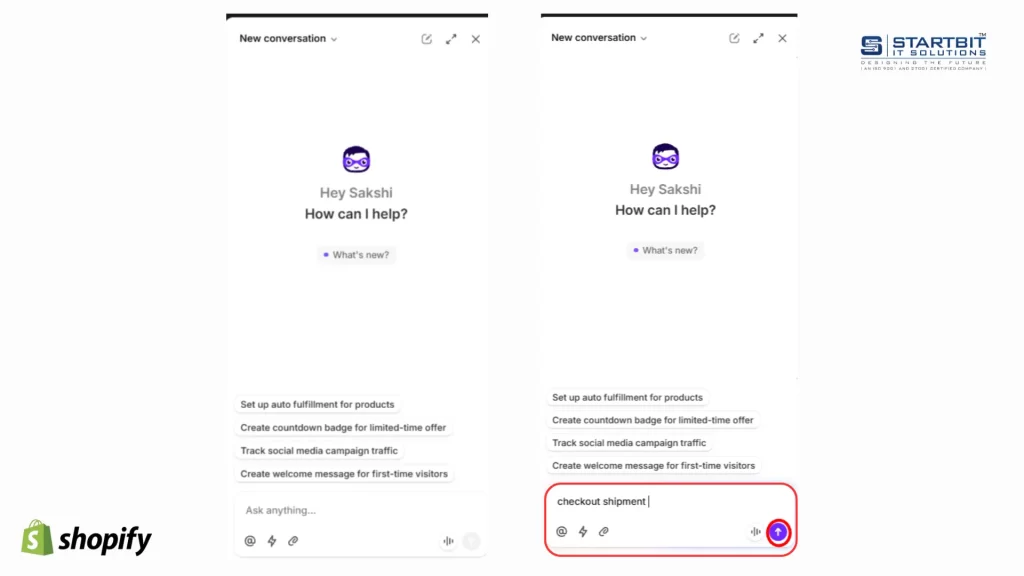
- Based on Sidekick’s response, you may need to take an action:
- Click the right arrow to go to the suggested page or resource.
- Click Apply to add the generated content to your store.
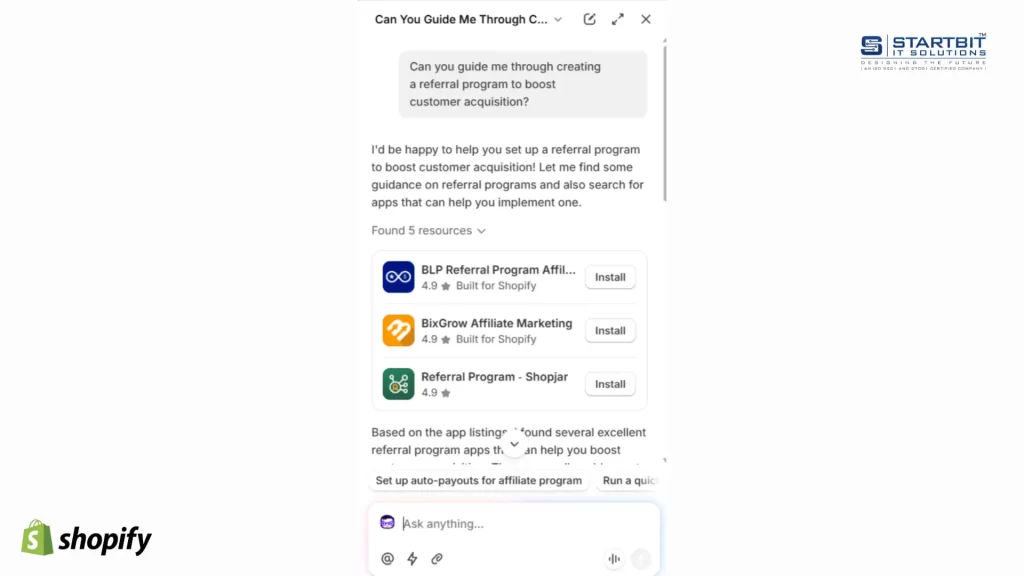
- (Optional) Give feedback by clicking the thumbs-up or thumbs-down below the response.
- (Optional) To close Sidekick, click the Sidekick icon again or click the X.
How to use Sidekick in full-screen mode:
Sidekick includes a full-screen mode that gives you a larger workspace for conversations. All features work the same in both full-screen and standard panel modes.
These are the steps to enable full-screen mode.
- Click on the “Expand’ button.
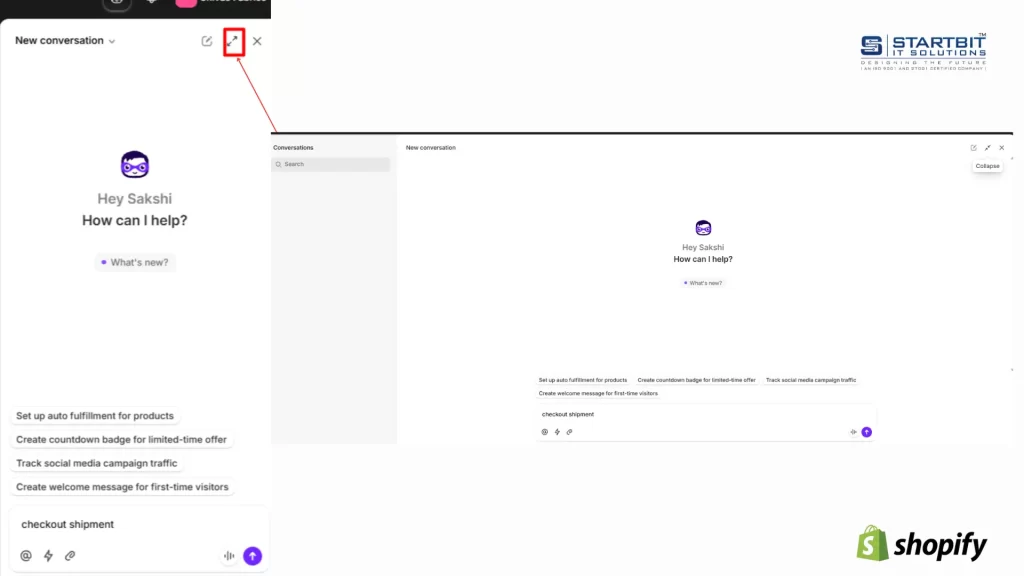
- When you click the Collapse button, Sidekick switches to the standard panel mode.
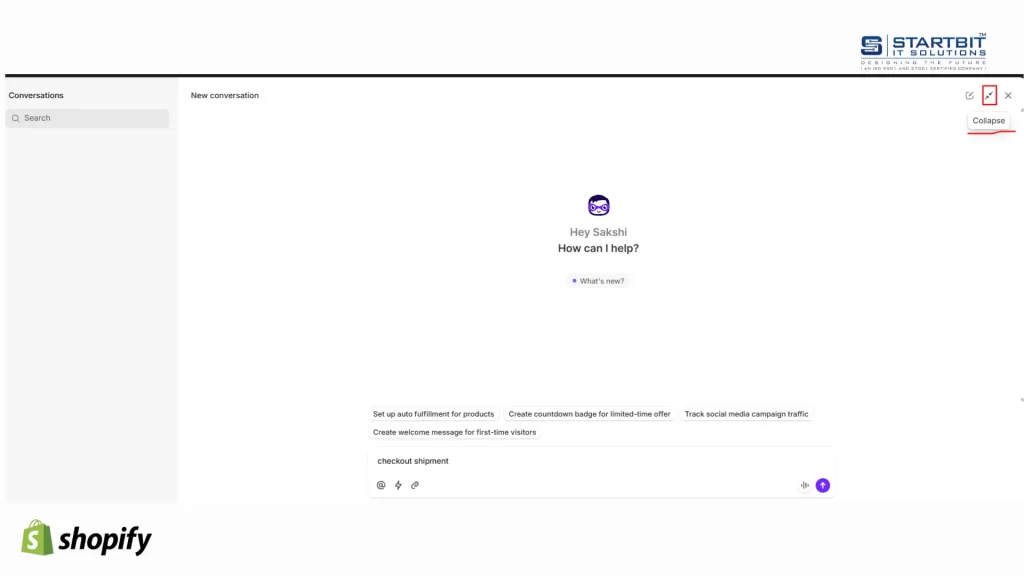
Use Sidekick on mobile devices:
Sidekick is currently not available on the mobile web admin or the Shopify mobile app. It’s only supported on tablets and iPads.
Sidekick can do specific tasks on the mobile.
- 3D scanning
- Barcode printing
- Tap-to-pay transactions
Using Sidekick Talk or Share Your Screen:
Sidekick offers voice and screen-sharing support to provide personalized, real-time assistance for your store. If an admin gets stuck at any point, they can start a call with Sidekick or share their screen for step-by-step guidance.
Step 1: On the Shopify admin home page, a Screen Share Call card is displayed.
Step 2: In the chat window, click Continue to give Sidekick access to your screen.
Step 3: Choose the option you want to choose for share the screen
- Browse Tab: Share only a specific browser tab
- Window: Share a specific application window
- Entire screen: Share your full screen, and the admin can navigate between multiple applications, windows, and documents during the session.
Step 4: Click on share
Step 5: When the admin wants to stop the screen sharing option, they click on stop sharing.
Use voice mode:
- Click the sidekick icon to open a chat from the Shopify admin
- Click on the voice icon
- In the chat window, click Continue to allow Sidekick to access your microphone.
- When you finish the chat, then click on the end of the call.
Limitations with Sidekick:
- Sidekick cannot communicate with customers as a human or act as customer support.
- Sidekick does not share or access private information to ensure user security and privacy.
- Sidekick cannot make changes to the store on its own without explicit admin approval.
- Sidekick is not available on the Shopify mobile app or mobile web
When Sidekick provides an answer to your query, customers can share feedback on the quality of the response directly within Sidekick’s chat interface.
Conclusion:
Shopify Sidekick represents a powerful step forward in simplifying store management by combining AI-driven assistance with Shopify’s robust admin tools. From generating content to guiding admins with voice and screen share, Sidekick helps merchants save time, reduce manual work, and run their stores more efficiently.
At Startbit IT Solutions, we help businesses fully leverage tools like Shopify Sidekick to enhance productivity, streamline operations, and improve overall store performance. Our Shopify experts ensure that merchants not only understand these new features but also apply them effectively to grow their online business.
Whether it’s store setup, customization, automation, or integrating advanced AI features, Startbit IT Solutions is dedicated to helping you build a smarter, faster, and more scalable Shopify store.
Short summary:
Shopify Sidekick is an AI assistant built into your Shopify admin that helps you do tasks faster, find answers instantly, and manage your store with simple chat commands.
You can use it in panel or full-screen mode, ask questions, apply suggested actions, use voice chat, or even share your screen for step-by-step guidance.
It works on desktop and tablets (not mobile app), doesn’t access private data, and won’t make changes without your approval.
Sidekick saves time, reduces complexity, and helps merchants run their stores smarter — all inside Shopify.