

Personal details about customers, such as their addresses and overpayments, are included in the CRM. Exposure of this data may lead to a drop in profits, loss of customers, threatened litigation, and a tarnished reputation. Using strong security protects the business as well as personal information. With regard to data security, Salesforce uses several features, such as encryption and audit trails. They act the same with data as a bank acts with its finances. Even so, you need to set up the appropriate settings for total protection and compliance, which requires:
- Having each user’s topology managed with different access rights.
- Making sure users log in with strong security (like MFA).
- Managing what others can or cannot see.
- Activating security protocols (GDPR/HIPAA).
All the outlined examples of good practices listed above are important and obvious, especially when we look at the major consequences of ignoring them. Being exposed to these risks increases the chance of a damaged reputation, less trust, and data breaches. Salesforce provided you with tools that can prevent a lot of fines, damage from breaking regulations, or harm to your reputation, provided they are used properly. Following these basic steps can stop sensitive data from being accidentally exposed.
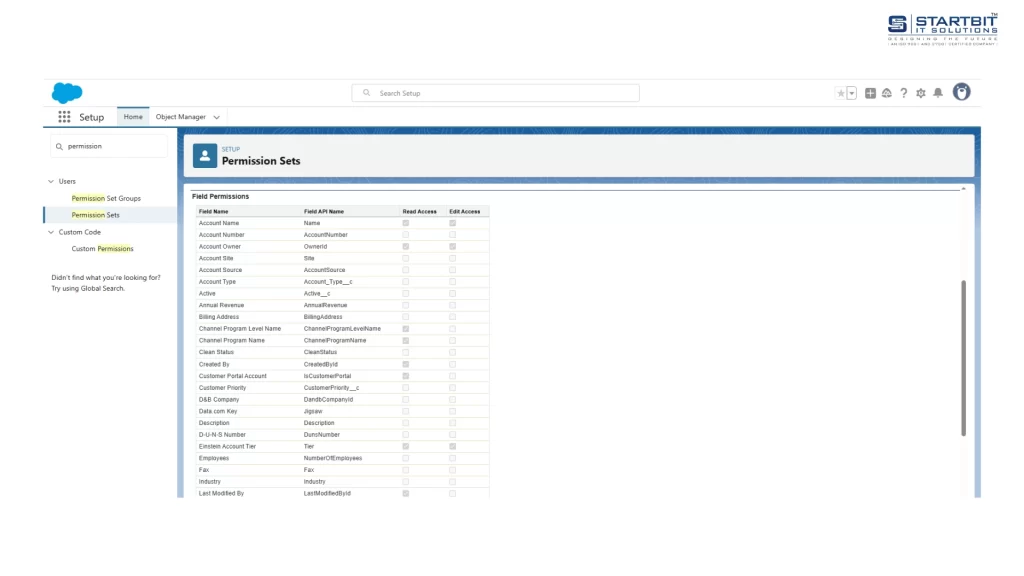
1. Enable Field-Level Security (FLS)
Fields are restricted to viewing and editing by FLS based on individual user profiles or my role types. It is very important because:
- Limits What Users See: Data displayed is relevant to their role.
- Hides All Important Data: Conceals your personal data, such as your SSN, emails, or financial data, from people you do not approve.
- You should always go over and update FLS settings whenever you edit profiles or permission sets.
FLS is very easy to use:
- In Setup, find ‘Permission Sets’ in the Quick Find box or choose Users, then select permissions for that user.
- Go to Find Settings, pick any object from the list, and press Edit.
- In the Object Permissions settings, make sure Read is switched on (enabled).
- Enable the appropriate field permissions under Field Permissions.
- Click Save.
2. Utilize IP Range Restrictions
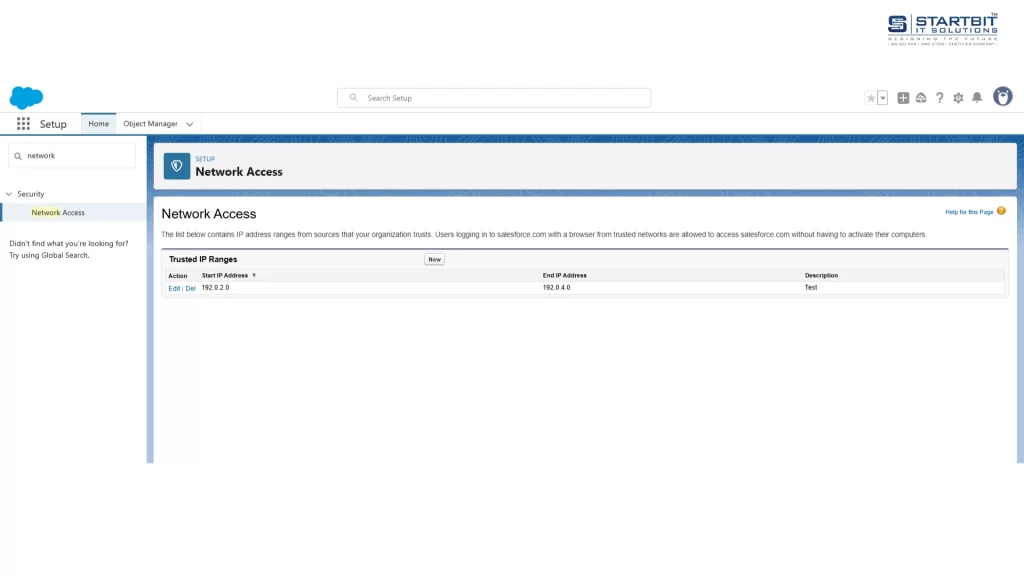
Your Salesforce org’s access is managed by IP range restrictions, much like a gatekeeper acts for you at a physical location. You specify which networks (at the office or over a VPN) are trusted, so only logins from these networks are permitted. It is very important because:
- It prevents attacks from computer systems that don’t belong to the network.
- If your password is taken by hackers, two-factor authentication prevents them from accessing your account (they have to have the login code).
- Go to ‘Network Access’ in Setup to set it up smoothly.
3. Enforce Multi-Factor Authentication (MFA)
Everyone using Salesforce needs to use Multi-Factor Authentication (MFA). It became required in February 2022. MFA requires you to type in a code you receive on your phone as well as your password at login. Even if your password is stolen, immediately stop hackers from using it. It is the strongest way to stop account takeovers. Check at regular intervals that all users are authenticating their accounts with MFA. A simple change like this increases your protection a lot.
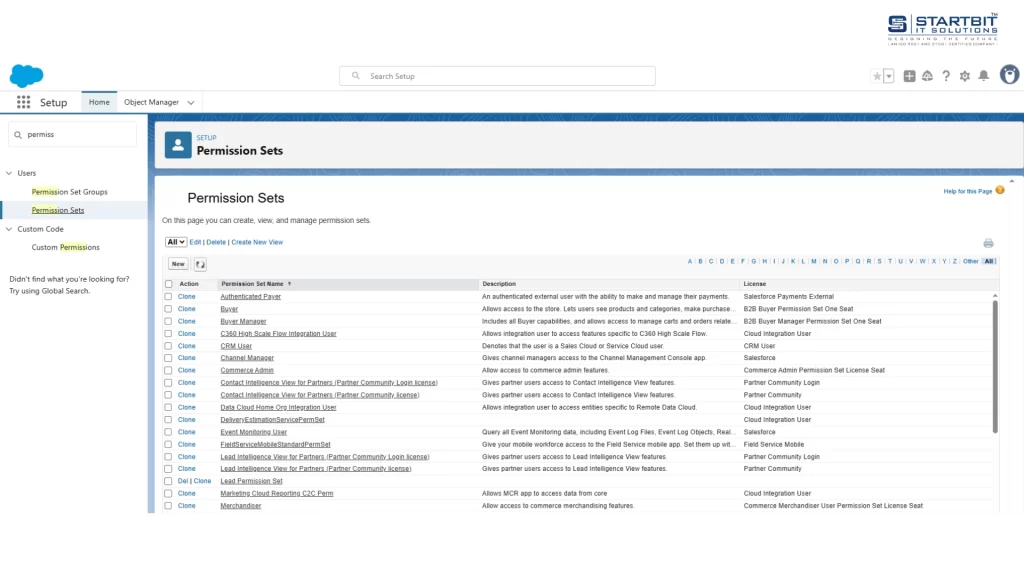
4. Review and Limit Profile and Permission Set Access
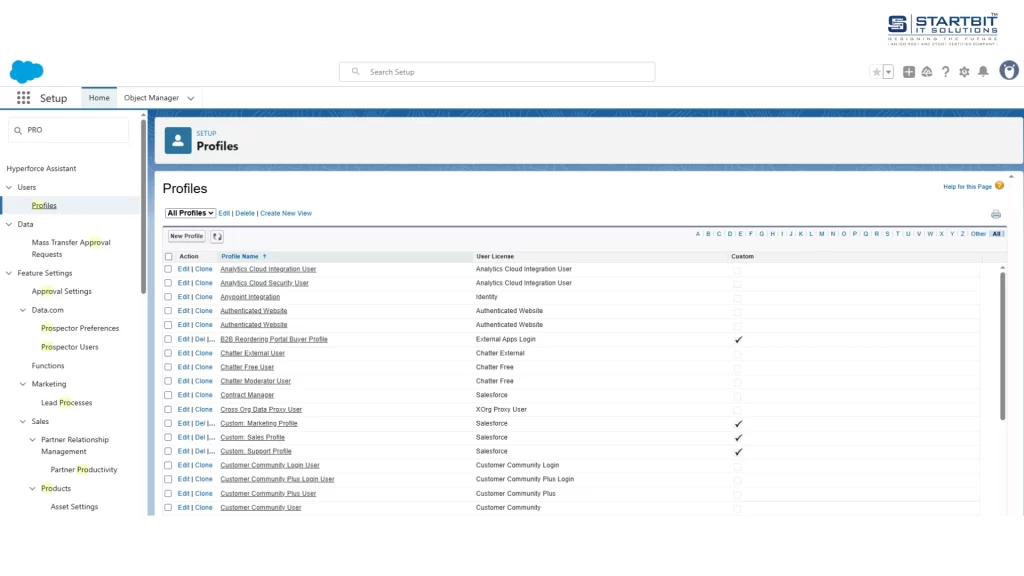
Take care of which features users access and what they can do in Salesforce by handling their profiles and permission sets. Everyone must follow ‘least privilege’: make sure users do not have access to any more functions than what their job requires. Frequently go to these settings to check for and fix overexposure. Avoid giving people broad access to everything without a reason. This guards against accidental or planned leaks of confidential information.
Go to the Profiles or Permission Set section in Setup to set it up without difficulty.
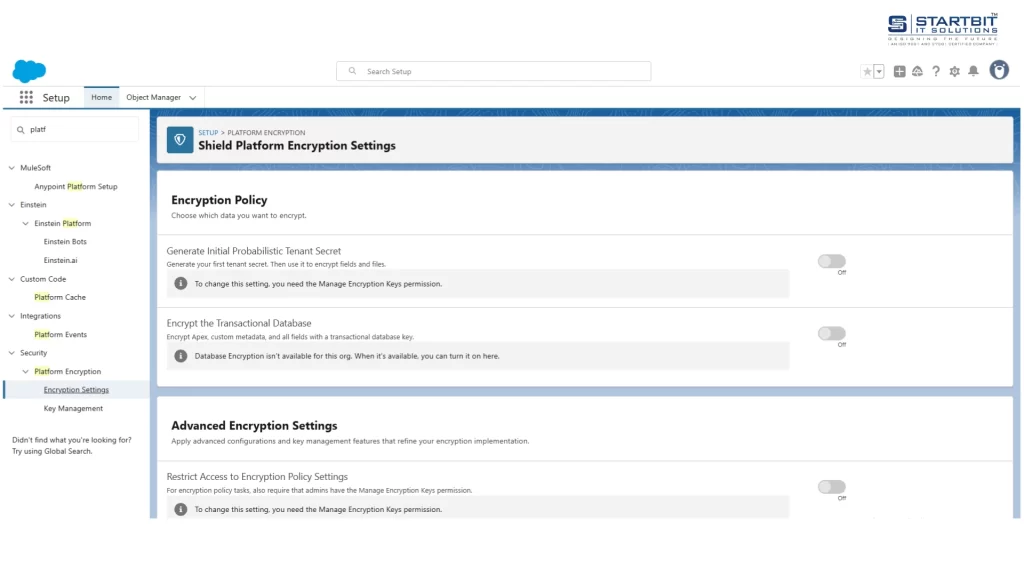
5. Configure Shield Platform Encryption (for sensitive data)
Salesforce Shield Platform Encryption is designed to protect your most important data. It encrypts personally sensitive information such as Social Security numbers, credit card numbers, or health records before they are stored. It is crucial since:
- It gives an extra measure of security if other defenses fail.
- Take your time: You need to plan by deciding which fields should have this top-level protection.
- Simply choose the option under ‘Platform Encryption’ when you are in Setup.
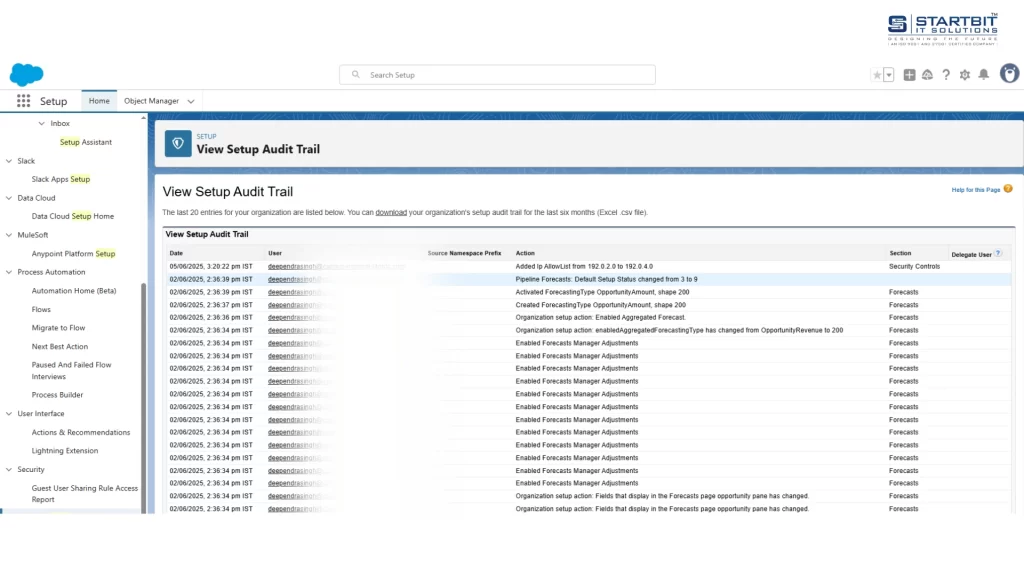
6. Monitor Audit Trails and Login History
Review the names of people logging in and see which data they view. Resort to the tools within Salesforce:
- This report includes every login attempt made (successful or not), where they were done, and at what time.
- Configuration changes made by admins are recorded in the Audit Trail.
- Event Monitoring (add-on): Gain deeper insights into activities like viewing records, exporting data, and using reports.
- A weekly review of the logs is very important.
7. Set Up Session Timeout and Login Hours
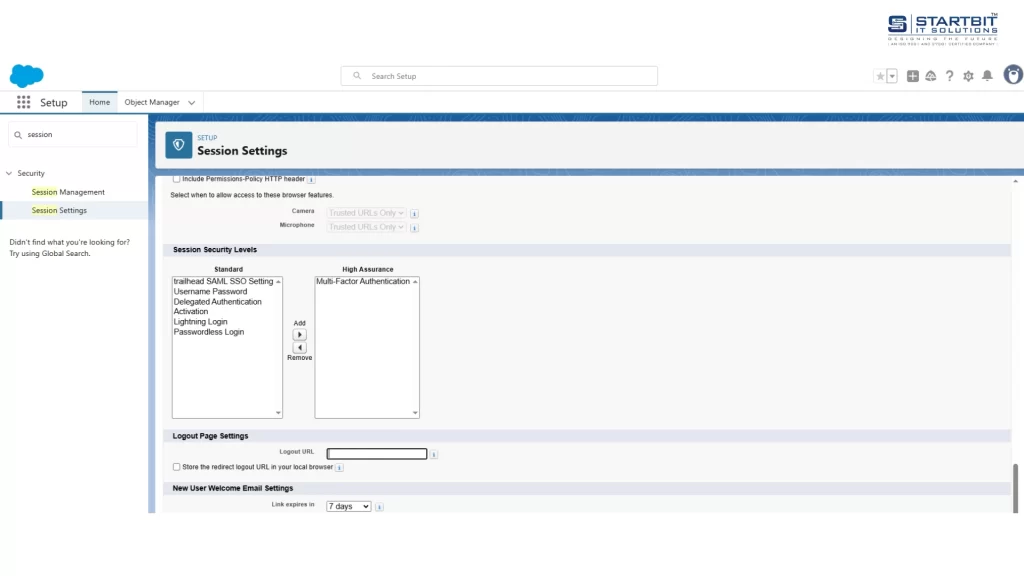
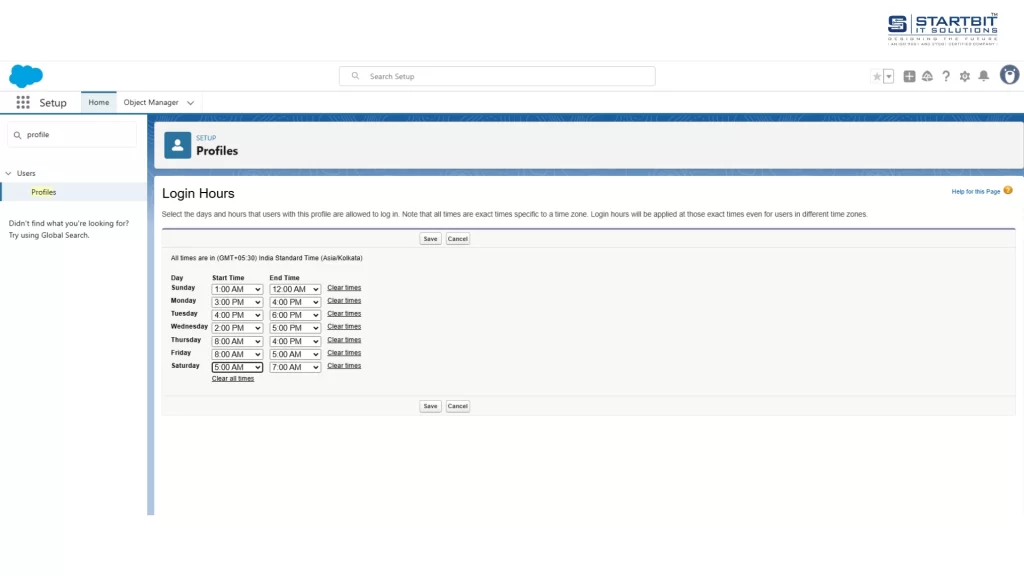
Salesforce uses session timeouts and login hours for security. Session timeouts log users off after inactivity, ensuring they can’t use the system without re-entering their password. Login hours restrict access for specific time periods.
Set automatic logout times:
Go to Setup > Session Settings. Define how long inactive users stay logged in (e.g., 15-30 minutes).
Restrict login times:
Under Setup > Profiles then select any profile that you want to edit, then set Login Hours (e.g., 8 AM–6 PM). This stops unauthorized access from stolen devices, forgotten screens, or off-hour attacks.
8. Secure API Access and Integrations
APIs and integrations are key, yet if they are poorly protected, they may become risks. Key steps:
- Store usernames and passwords safely and set up secure sign-in through Named Credentials & OAuth.
- Delete Any No Longer Used Connected Apps.
- Go through all active integrations regularly.
If APIs are unsecured, they might let out data, allow hackers entrance, and put the organization at risk for failing compliance.
9. Data Masking and Anonymization for Sandboxes
Be sure not to use customers’ real data when working in sandboxes. Getting a copy of an authorization badge is a significant GDPR/privacy risk.
Instead:
- Salesforce Data Mask: (Paid add-on) Scrambles actual data.
- Make sensitive data anonymous before the data goes into development.
- It keeps customer data away from being handled in doubtful test systems.
10. Enable GDPR Tools: Data Export, Erasure, and Consent Management
Activate Salesforce’s built-in GDPR features to comply with strict privacy laws:
- Data Export & Erasure: Use the Individual Object to track data subjects.
- Consent Management: Enable the ‘Consent’ object in Setup.
These tools are mandatory for GDPR compliance. They prevent massive fines by proving you respect user rights and consents.
Conclusion
A strong Salesforce security setup is key to protecting your data and staying compliant. The ten practices listed—like field-level security, MFA, IP restrictions, and GDPR tools—work together to block unauthorized access, protect sensitive information, and meet privacy laws. These settings are easy to configure but must be reviewed regularly. Don’t just set them once—keep checking user access, login history, and integration points. Also, avoid using real customer data in sandboxes—use masking to stay safe and compliant. Together, these steps create a secure and reliable Salesforce environment, reducing the risk of data breaches and helping your team work confidently.
Need help with Salesforce development, implementation, security, and more?
We are Startbit IT Solutions, your trusted Salesforce partner, here to support you every step of the way. With years of experience in Salesforce services, we ensure top-notch solutions tailored to your business needs.
Looking for expert help?
Contact us today to get the best Salesforce services.