

Salesforce offers many powerful features that can help your team save time and work more efficiently. From customizing how you view data to automating daily tasks, these tools are easy to use and don’t require coding. Features like List Views, Global Actions, Dynamic Forms, and Macros help users quickly access information and complete tasks faster. Whether you are a sales rep, a service agent, or a manager, these quick features can make your work smoother and save over 10+ hours each month.
1. Salesforce List Views
A list view displays a collection of records for an object, according to certain conditions. List views are a useful tool for viewing the records that are most relevant to your needs. When you look at data in list form, you will just be able to see the information you are allowed to see.
For Example: – Jack, a new sales rep for your company, focusing on the Technology industry in the UK. He wants to set up a custom list view so he can see only those types of accounts. Here we go-
You can specify the fields to be shown in the list view, add a chart to your list views, and edit the text in the List view.

Types of Salesforce List View Display: –
Table: – Salesforce Table View is the default view option, as in a spreadsheet or Excel sheet.
Kanban View: This view provides a visual overview of your data. You can select which categories of field records you want to combine and also calculate the total for them. It is possible to drag and drop records in Kanban View. Opportunity is especially beneficial for this purpose.
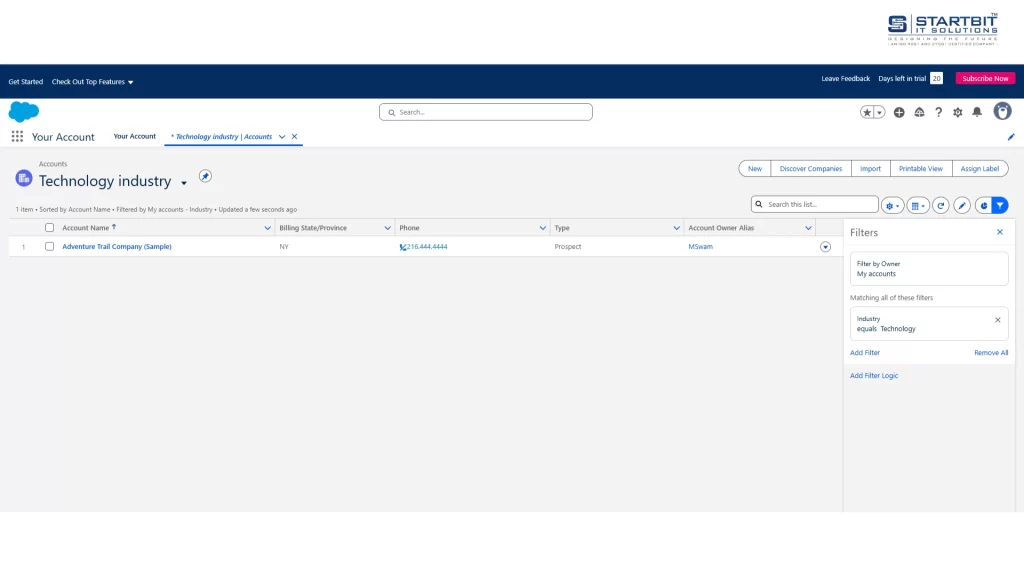
Split View: – It is a view that shows the list view and the record detail pane at the same time. This enables the user to easily browse through records, edit them, and move through a list of records without having to keep changing the view.
2. Favorites and Global Actions
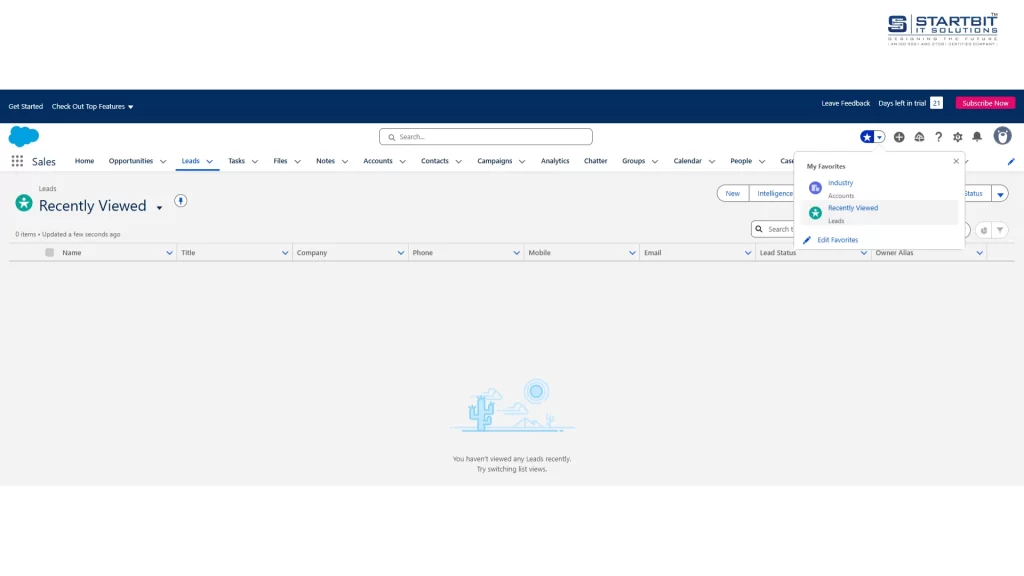
To quickly access your Favorites in Salesforce, look for the star symbol located in the top right corner of your Lightning pages. You’ll be able to stamp as favorites not as it were Reports or Dashboards, but person records and list views are backed as well.
One great way to start standard tasks or methods in Salesforce without ever clearing out the page you’re on is to utilize worldwide activities. Nearly all lightning pages that support actions can have global actions included. Clients can send emails, log call points of interest, and make or change records using global actions.
For Illustration, A Real Estate Company uses the contact object to keep track of its prospective home buyers. Suppose that one of the brokers is out facilitating an open house, and she meets a buyer. You need to include prospective buyers as quickly and simply as possible, without exploring a particular page. Fast or brief things that clients can follow up later are the main reason for global actions.
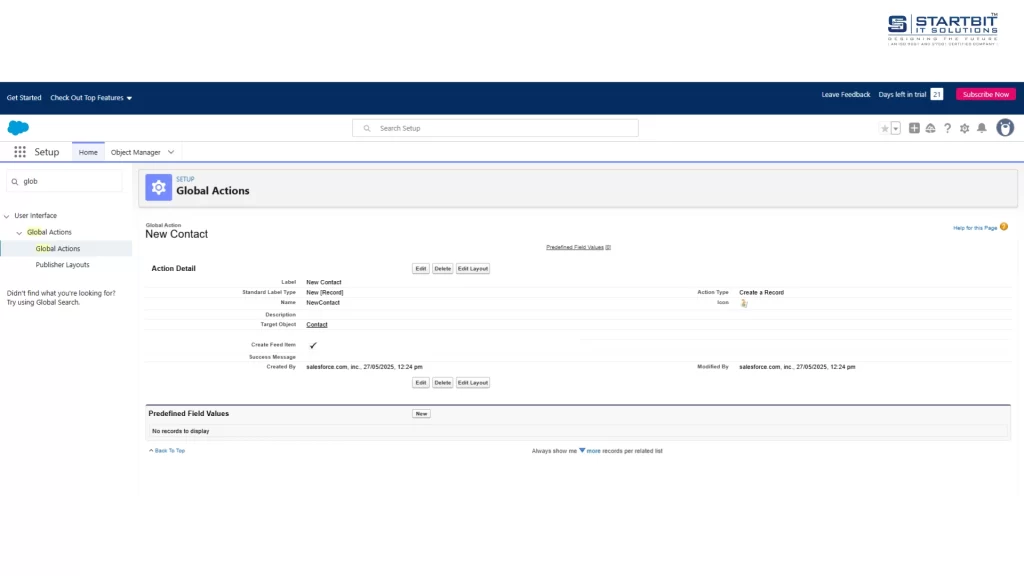
Create a Modern Prospect global action to gather modern potential buyers’ contact data.
Select, as it were, the basic areas within the format, like company, name, phone number, and email.
3. Dynamic Forms and Actions
With Salesforce’s Dynamic Forms, you’ll utilize the Lightning App Builder to form unimaginably adaptable and customizable record detail pages. They empower you to powerfully appear or cover up areas and areas based on particular criteria, decreasing clutter, and giving more customized client involvement.
Assume that your Salesforce organization has page formats with more than 100 areas since different clients sort utilize different areas on the same page. And perhaps it has several slightly different versions of a page to support different profiles or record types on the same object. Dynamic Forms & Actions are a great way to do this.
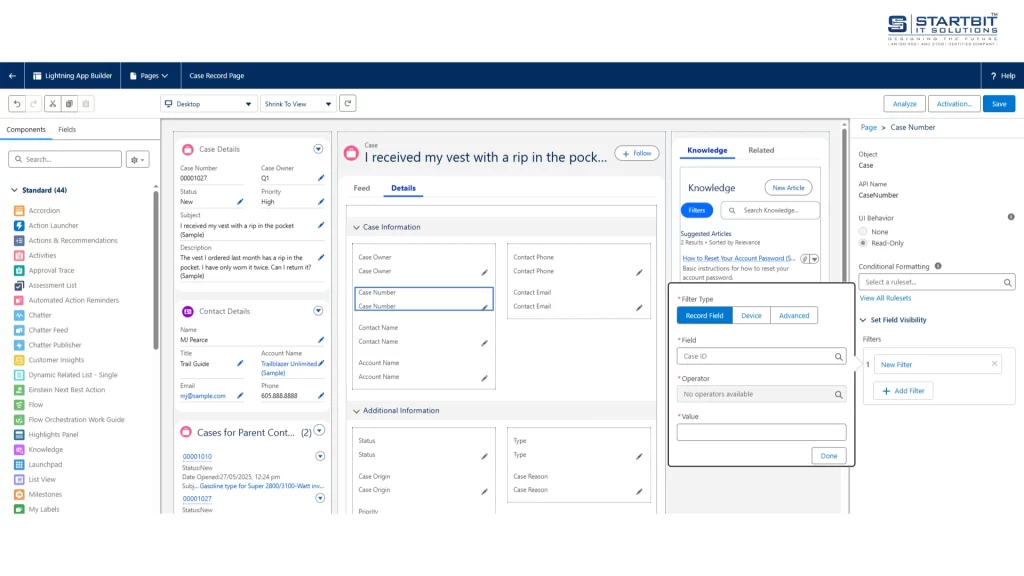
Conditional Visibility:
This is the key inclusion of energetic shapes. You’ll powerfully appear and hide Areas & areas based on record information, client points of interest, and type of device factor, so that your clients get as it were the fields and areas that they need.
4. Permission Set Groups
Permission Sets can be assigned to users and grouped together using Permission Set Groups. This may seem like a simple feature, but Permission Set Groups can revolutionize the structure of your Org.
For instance, the vice president of your sales department, Rohit Sharma, has users who require permissions to read, create, and delete surveys; customize list views and reports; and create and edit price books.
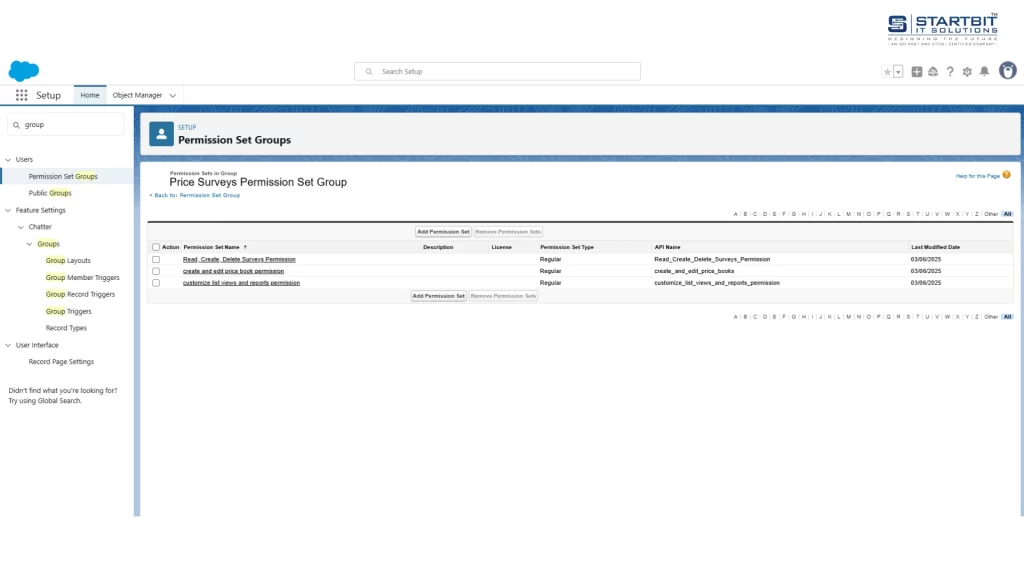
You can construct a single group with all of the permission sets required for the pricing surveys job function by using permission set groups. The individual permission set can also be used outside of the group.
5. Omni-Channel
Consumers want each encounter they have with your business to be unique and not a recurrent one. Customers’ biggest annoyance is disconnected experiences. So, let’s get started: –
Omnichannel can be configured declaratively, eliminating the necessity for coding. Thanks to this customer service solution, your customers may easily communicate with your support personnel through various means.
Some consumers might want to use web chat or sms, some will want to use email, others will find it convenient to make a phone call, and others will want to get tickets via a service portal. All of the previous communication transcripts are already included in their case file. An agent is therefore immediately up to speed and able to concentrate on finding a speedy solution.
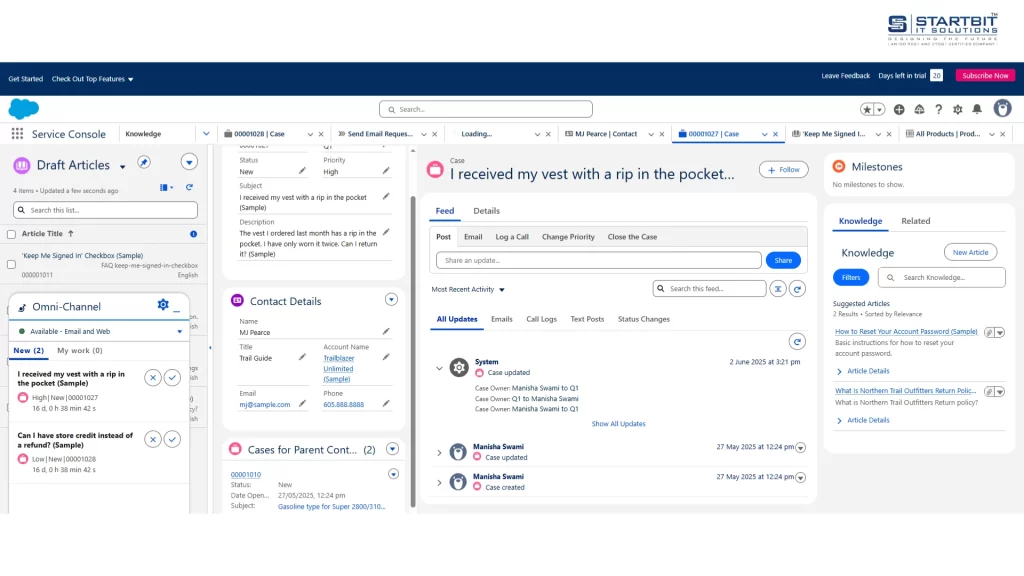
Omni-Channel, Service Cloud’s customer service center, pushes work to agents in real time to the most qualified, available support agents using the routing criteria that you define, right from the Salesforce console. Agents no longer have to pick/choose work assignments manually from a queue, which saves everyone in your call center time, effort, and brainpower.
Omni-Channel makes it all happen using objects. Object, for instance, cases, chats, leads, and social posts etc.
6. Macros
For your end users, macros may incredibly increase productivity and offer an incredible Salesforce client encounter.
Tasks like choosing an email layout, sending a client an email, and upgrading the case status can all be automated with a single press utilizing macros. An instruction set that instructs the framework on how to achieve a assignment is called a large scale.
A macro is a set of instructions that tell the system how to complete a task.
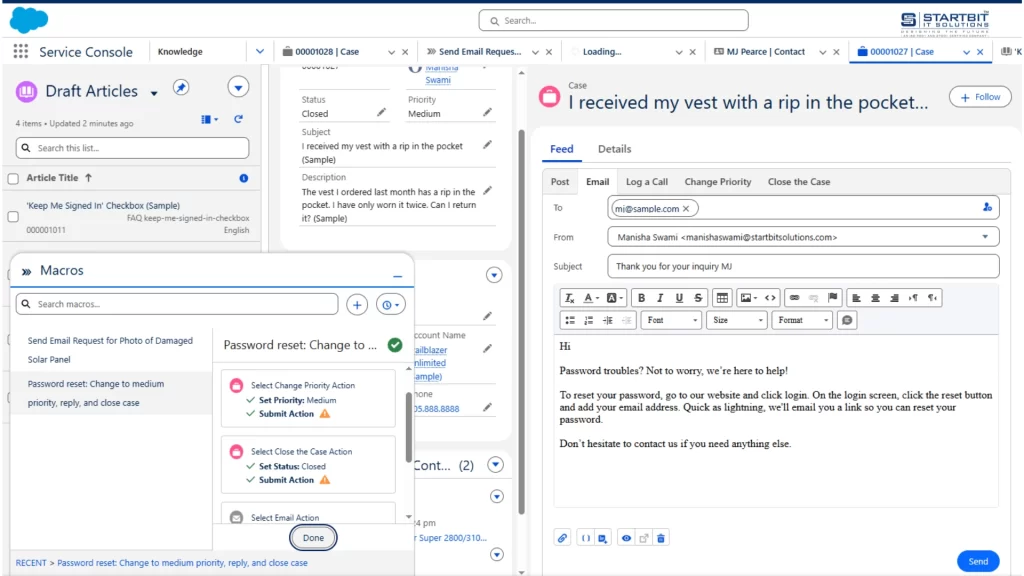
By automating repetitive tasks, macros streamline the process of providing support to customers, enabling your support team to deliver assistance more efficiently. When a user executes a macro from an app utility bar, the system automatically carries out each instruction on the open record.
For Example, Manisha arrives at work early, Anjali stops by her desk. More cases about Damaged Solar panels arrived today. Manisha logs in and launches her Service Console app. She knows macros perform actions on records, so she opens one of the cases for a broken panel. She decides to create a macro that sends an email to customers who haven’t submitted photos of the broken panels. Photos are required to authorize a replacement, so she wants to make requesting them easy.
Conclusion:
Using Salesforce smartly can save a lot of time and reduce extra effort. The features mentioned above help teams work faster, stay organized, and give better service to customers. By using List Views, Dynamic Forms, Global Actions, Omni-Channel, Permission Set Groups, and Macros, your team can focus more on important tasks and less on manual work. These tools are simple but very effective.
Let Startbit IT Solutions help you implement these features efficiently. From configuration to optimization, we make Salesforce work for your business.