

Why Image Optimization Matters for Shopify Stores
In e-commerce, your website’s loading speed can literally make or break a sale. According to Google, a delay of just one second in page load time can reduce conversions by up to 7%. For Shopify store owners, that means fewer sales, higher bounce rates, and lower SEO rankings.
Images are often the largest files on your website, contributing to over 50% of total page weight. If not optimized, they slow down your Shopify store drastically. The good news? With the right image optimization strategy, you can dramatically improve store performance, user experience, and even SEO rankings – without losing image quality.
What Is Image Optimization?
Image optimization is the process of reducing the file size of images without compromising visual quality. The goal is to make your Shopify store load faster while keeping your products looking sharp and attractive.
This includes:
- Choosing the right image file format
- Using compression tools
- Resizing images to the right dimensions
- Implementing lazy loading
- Using Shopify apps or CDNs for faster delivery
When done correctly, your store will not only load faster but also perform better across Google PageSpeed Insights, Core Web Vitals, and Shopify’s Online Store Speed Score.
Benefits of Optimizing Images on Shopify
- Faster Page Load Time
Optimized images reduce page weight, meaning faster loading across all devices – especially mobile. - Improved SEO Rankings
Google considers site speed as a ranking factor. Faster stores often rank higher in search results. - Better User Experience (UX)
Visitors prefer smooth, quick browsing experiences. Faster load times lead to lower bounce rates. - Higher Conversion Rates
When pages load quickly, shoppers stay longer and are more likely to make purchases. - Reduced Bandwidth and Storage Costs
Smaller image sizes mean less bandwidth consumption and quicker CDN distribution.
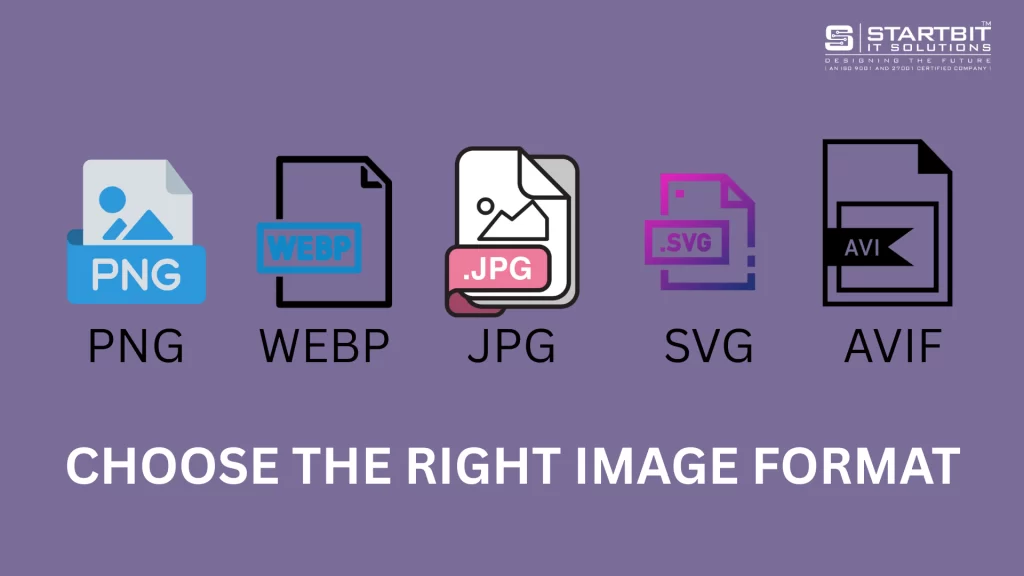
Step 1: Choose the Right Image Format
Different image formats serve different purposes. Selecting the correct one ensures a balance between quality and performance.
| Format | Best For | Benefits |
|---|---|---|
| JPEG (JPG) | Product photos, banners | Small file size, supports high-quality compression |
| PNG | Logos, transparent images | Preserves transparency, sharp edges |
| WebP | Modern Shopify stores | 25–35% smaller than JPG/PNG without quality loss |
| SVG | Icons, graphics | Vector-based, scalable without losing quality |
| AVIF (Advanced) | Next-gen compression | Better quality at smaller sizes (supported on newer browsers) |
Pro Tip (from Startbit IT Solutions): Use WebP as your default format whenever possible. Shopify supports WebP on most modern themes, ensuring lightweight yet crisp visuals.
Step 2: Resize Images to the Correct Dimensions
Many store owners upload high-resolution images directly from cameras (e.g., 4000px wide). Shopify automatically resizes them for display, but the file weight remains large — affecting speed.
Solution:
Resize your images before uploading. Common Shopify image sizes include:
- Product images: 2048 x 2048 px
- Collection images: 1024 x 1024 px
- Slideshow banners: 1920 x 1080 px
- Favicon: 32 x 32 px
Use free tools like:
- Canva
- Figma
- TinyPNG Resize
- Adobe Photoshop Export for Web
Startbit Tip: Keep the image resolution just enough for display – not printing. Anything above 72 DPI is unnecessary for web use.
Step 3: Compress Images Without Losing Quality
Compression is the heart of optimization. You can reduce image file size by 30–70% using compression tools – without visible quality loss.
Recommended Tools:
- TinyPNG / TinyJPG – Smart lossy compression
- Squoosh.app (by Google) – Manual control for quality
- Shopify apps like:
- Crush.pics
- Image Optimizer
- TinyIMG SEO & Speed
These tools automatically compress your images upon upload and even optimize existing ones.
Pro Tip: Always keep your image file size below 300 KB for regular images and under 150 KB for thumbnails.
Step 4: Use Descriptive File Names and Alt Text
Image optimization isn’t only about file size – it’s also about SEO. Google uses your image file names and alt text to understand what’s being displayed.
Example:
❌ Bad name: IMG_0045.jpg
✅ Good name: red-leather-handbag-shopify-store.jpg
Alt text example:
“Red leather handbag with gold chain strap available on Shopify store”
This helps with:
- SEO ranking for image search
- Accessibility for visually impaired users
- Better understanding by Google crawlers
Startbit SEO Tip: Include keywords naturally in file names and alt texts. Example: “Shopify women’s summer dress collection 2025”.
Step 5: Use Shopify’s Built-In CDN
Shopify automatically serves images via its Global Content Delivery Network (CDN) – ensuring faster delivery worldwide.
However, you can boost performance further by:
- Using Shopify’s Online Store 2.0 themes
- Implementing lazy loading (built-in on most modern themes)
- Leveraging Cloudflare or Fastly CDN layers for extra caching
Startbit Tip: Check your Shopify theme’s Liquid files to ensure loading="lazy" is added to <img> tags. This delays image loading until it’s visible on screen, improving initial page speed.
Step 6: Implement Lazy Loading
Lazy loading is a performance technique that loads images only when they appear in the user’s viewport.
Why It Matters:
- Reduces initial page size
- Improves First Contentful Paint (FCP)
- Saves bandwidth for users
How to Enable:
- Use modern Shopify themes (like Dawn) that already have it.
- For custom themes, developers can add:
<img src="{{ image.src | img_url: '480x480' }}" loading="lazy" alt="{{ image.alt | escape }}">Startbit Developer Tip: We recommend enabling lazy loading across all image-heavy sections – product grids, blog images, and carousels.
Step 7: Optimize for Mobile Devices
Over 70% of Shopify traffic comes from mobile users. Make sure your images load fast on smaller screens.
Steps:
- Use responsive images with Liquid code like:
<img srcset="{{ image | img_url: '480x480' }} 480w, {{ image | img_url: '1024x1024' }} 1024w" sizes="(max-width: 600px) 480px, 1024px" src="{{ image | img_url: '1024x1024' }}" alt="{{ image.alt }}">- Test using Google PageSpeed Insights on mobile view.
- Avoid unnecessary animations or sliders on product pages.
Startbit Mobile Tip: Always preview your Shopify store on mobile devices before publishing updates.
Step 8: Use Image Optimization Apps
Shopify’s ecosystem has many powerful apps for automation. Some popular and reliable ones are:
| App | Key Features | Rating |
|---|---|---|
| TinyIMG SEO & Image Optimizer | Compression, alt text automation, broken link fixing | ⭐ 4.9 |
| Crush.pics | Auto-optimization, CDN caching | ⭐ 4.8 |
| SEO Image Optimizer by Booster | Free plan, bulk optimization | ⭐ 4.8 |
| Image Optimizer & Lazy Loader | Adds lazy loading + compression | ⭐ 4.7 |
Startbit Suggestion: Choose an app that integrates with your existing theme structure and doesn’t conflict with custom Liquid code.
Step 9: Test and Monitor Performance
After optimizing images, test your site performance to measure improvement.
Use tools like:
- Google PageSpeed Insights
- GTmetrix
- Shopify Analyzer (by Website Speed Test)
- Pingdom Tools
Focus on these metrics:
- LCP (Largest Contentful Paint)
- FCP (First Contentful Paint)
- CLS (Cumulative Layout Shift)
Startbit Insight: Aim for LCP < 2.5 seconds and CLS < 0.1 for the best Core Web Vitals performance.
Step 10: Keep Optimization a Continuous Process
Shopify stores are dynamic – new products and banners are added often. That means image optimization is not a one-time task.
Make it part of your maintenance routine:
- Recompress images before uploading
- Check PageSpeed every month
- Replace outdated or oversized banners
- Use structured naming conventions
Startbit Maintenance Tip: Automate monthly checks using Shopify apps or third-party audit tools. It saves time and ensures consistency.
Conclusion
Image optimization is one of the simplest yet most powerful ways to enhance your Shopify store’s speed, SEO, and overall user experience.
From choosing the right formats to implementing lazy loading and responsive design, every step plays a vital role in how efficiently your site performs.
At Startbit IT Solutions, we help Shopify businesses create fast, visually stunning, and performance-driven stores using proven optimization strategies. Whether it’s image compression, theme performance, or end-to-end Shopify speed optimization our experts ensure your store performs at its peak.
🔗 Ready to Optimize Your Shopify Store?
Contact Startbit IT Solutions today to boost your site speed, improve SEO performance, and deliver lightning-fast user experiences.
📩 Visit Startbit IT Solutions